n8n Outlook Automation: Where the Node Stops and Graph Begins
n8n Outlook automation breaks in predictable places: subfolders, attachments, shifting email IDs, plus the Graph API workarounds we run in production.
By Matthew Clarkson · March 16, 2026
Updated June 2026. Reworked into a fuller field guide, with a worked Microsoft Graph API call, a node-versus-Graph decision section, and FAQs, after this page slipped to the edge of page one.
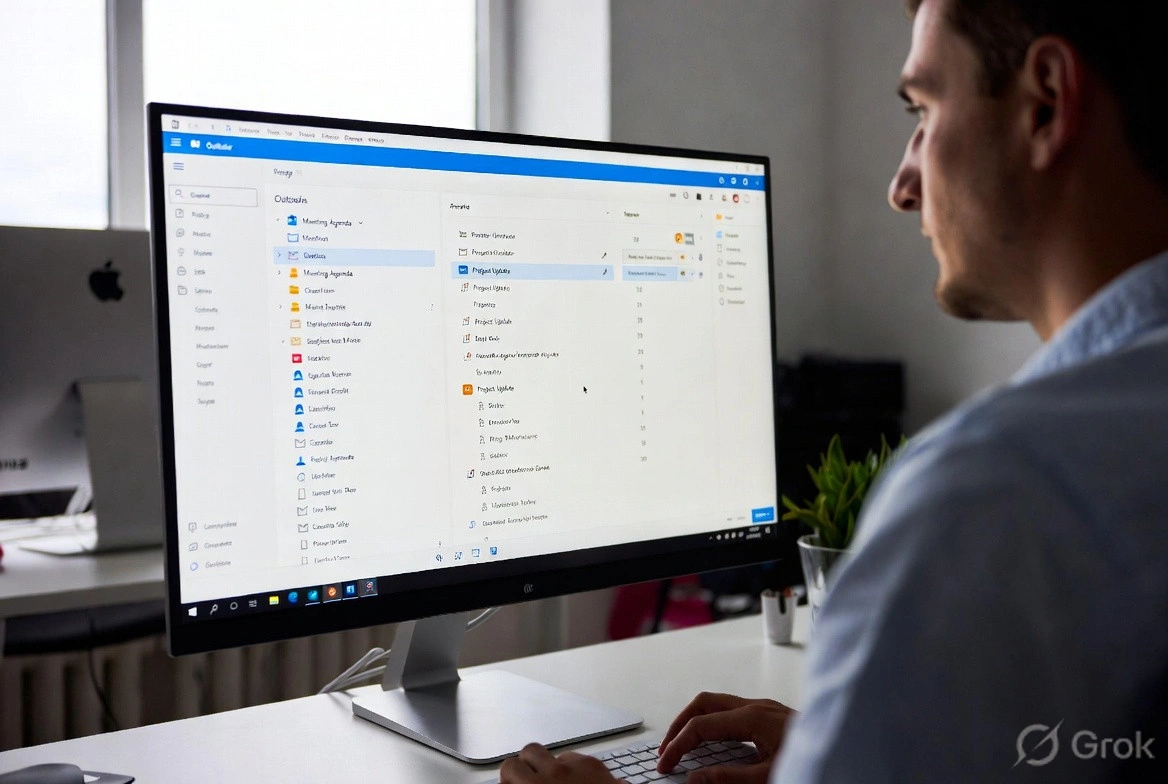
n8n Outlook automation looks trivial in the demo and then bites you in production. You wire up the trigger, send a test email, watch it fire, and assume the rest of the build will go the same way. Then someone moves an email into a subfolder and nothing happens, an attachment step pulls in three signature logos, and a flow that “failed” twenty-six times turns out to have worked perfectly.
We are n8n consultants based in Brisbane, and we have spent the better part of nine months building Outlook-centred flows across medical practices, recruitment firms, and property managers. Different industries, same email platform sitting in the middle of everything. This guide is the honest version of what we learned: where the native nodes are genuinely good, where they quietly stop, and the point at which you end up writing Microsoft Graph API calls by hand.
If you are scoping an Outlook build, or you are mid-flow and stuck, this covers credentials, triggers, attachments, email bodies, headers, and the Graph escape hatch. For the broader picture of how email automation fits into a wider stack, our write-up on RPA with n8n and the n8n configuration settings reference are good companions.
One Credential, One Mailbox: the Rule That Shapes Everything
Before you place a single node, learn the rule that constrains every Outlook automation you will ever build in n8n: one credential, one mailbox. That is it.
It does not matter that the account you authenticate with can open fifteen shared mailboxes in the Outlook web client. Each n8n credential is bound to a single mailbox, either the signed-in account or one shared mailbox that account has rights to. You pick one per credential.
In practice this means monitoring several inboxes turns into several credentials, several trigger nodes, and a workflow that grows linearly with the number of mailboxes. It is not elegant. It is the reality, and it is far better to design around it on day one than to discover it half-built. If you are planning a multi-inbox setup, budget for the extra credential management up front and keep your authentication accounts documented somewhere your future self will find them. Ours live in 1Password, one entry per mailbox, which has saved more than one late-night debugging session.
The n8n Outlook Trigger and Its Subfolder Blind Spot
The n8n Microsoft Outlook Trigger node fires on “new message received.” Obvious enough, and it works beautifully when mail lands directly in the inbox you are watching. Introduce subfolders and it gets interesting.
Here is the trap. If an email arrives in the inbox and a person manually drags it into a subfolder, the trigger does not fire. As far as n8n is concerned that message already existed, it simply changed location. “New message received” means received by the server, not received by the folder. This catches out almost everyone building their first n8n Outlook integration around a human review step.
The only case where the native trigger reliably watches a subfolder is when a server-side rule routes the mail straight into that folder before any human touches it. The moment a person is in the loop, dragging emails into a “to process” folder, the trigger goes quiet.
The workaround is to drop the trigger for that use case and poll instead. A Schedule Trigger fires every few minutes, then an Outlook Get Many node reads whatever is sitting in the subfolder right now. It works. The trade-off is that the workflow runs whether or not there is anything to do, so your execution count climbs regardless of real workload. If you rely on execution history to gauge how busy an automation actually is, that polling noise makes the signal harder to read. We usually tag polled executions or short-circuit them early when the folder is empty, so the history stays meaningful.
Why Email IDs and Web Links Keep Breaking
This one bites repeatedly. Both the email ID and the web link for an Outlook message are tied to its current location. Move the email to another folder and both values change. The old ones are dead immediately.
For a simple linear flow this never surfaces. You read the email, process it, move it once at the end, done. It is the more complex flows that break, especially when several attachments are processed in parallel or handed off to sub-workflows. One branch moves the email, every other branch then references an ID that no longer points anywhere, and those branches fail.
We have watched a flow report one success and twenty-six failures that was, in fact, working exactly as intended. The first completed branch moved the email, and the other twenty-six were trying to move something that had already gone. Not broken. It just looks broken, and anything downstream of that failed move step will not run, which is the part that actually hurts.
The practical takeaway: if you split work across parallel paths that all touch the same email, write error handling that treats “this email has already been moved” as an expected, acceptable outcome rather than a failure. Move the email once, in a single designated branch, and let the others reference data you captured before the move.
Attachments Are Wider Than You Think
Downloading all attachments from an email sounds simple, and it is, right up until you remember that “all attachments” includes every image embedded in the sender’s signature.
If your flow only ever wants PDFs, filter by file type and move on. Real business workflows rarely stay that tidy. Build a pipeline that processes images, Word documents, Excel files, and PDFs depending on what a sender happened to attach, and you cannot filter by extension alone, because you are almost certainly also pulling in two or three signature logo files that look exactly like attachments from n8n’s point of view.
We have had to build attachment filtering that combines several signals to separate “the document we need” from “the company logo in the footer.” File name alone is not enough, because people name files badly. File size alone is not enough, because legitimate small documents exist. A logo is usually a small PNG or GIF under about 20 KB with a name like image001.png, so a combination of MIME type, size threshold, and name pattern gets you most of the way. The exact mix depends on the workflow, and occasionally you need a classification step on top.
A starting filter in a Code node looks roughly like this:
// Keep real documents, drop signature images
const keep = [];
for (const item of $input.all()) {
  for (const [key, bin] of Object.entries(item.binary || {})) {
    const name = (bin.fileName || '').toLowerCase();
    const size = bin.fileSize || 0; // bytes
    const isImage = (bin.mimeType || '').startsWith('image/');
    const looksLikeSignature = isImage && size < 20000 && /image\d{3}/.test(name);
    if (!looksLikeSignature) {
      keep.push({ json: { fileName: bin.fileName, key }, binary: { [key]: bin } });
    }
  }
}
return keep;
It is solvable, but it adds real complexity to a flow that should, on paper, have been three nodes long.
Sending Mail: Dynamic Attachments and the Zip Workaround
Sending email out of n8n through Outlook is genuinely good. HTML message bodies, flexible From addresses (as long as your credentialed account can send as that address), read receipts, flags, importance levels, it all works cleanly in the native node.
The one weak spot is dynamic attachments. Each attachment has to be added as its own row in the node configuration, pointing at a specific binary property. If you always send exactly one PDF, fine. If the number of output files varies depending on what the flow processed, you are stuck, because you cannot add an unknown number of rows at design time.
The workaround we keep landing on is to zip the output files into a single archive and attach that. Not the most elegant experience for the recipient, who now has to unzip, but it is reliable and it handles any number of files with zero changes to the node. For internal notifications nobody minds. For client-facing mail we sometimes upload to storage and send a link instead, which sidesteps the whole problem.
Reading the Email Body Without Drowning in Outlook HTML
Pull an email into n8n and you get a few different fields for the content. Each has a use, and one of them will quietly cost you money if you are not careful.
- subject : clean, reliable, does what it says.
- bodyPreview : plain text up to a character limit. Good for a quick check, useless when you need the whole message.
- body.content : the full body, delivered as Outlook’s own HTML.
That last field deserves a warning. It is not clean HTML. It is Outlook’s particular flavour of fully structured markup, stuffed with inline styling and the formatting cruft Outlook loves to generate. If you need to do anything with the actual text, strip that HTML to plain text before passing it anywhere.
This matters most when the next step is an AI model. Hand the raw Outlook HTML to a model and it will work through the markup and extract what it needs, but you are burning extra tokens and adding latency on every single execution to make the model do something a tiny pre-processing step would have handled for free. At a few hundred emails a day those tokens add up to a line item you will notice. Clean the content first, then send it downstream to whatever AI agent or parser comes next.
Headers: What the n8n Outlook Nodes Won’t Show You
Here is one that stays invisible until the day you need it. The native n8n Outlook nodes do not expose raw email headers. Expand the full data output of an email node and the actual message headers are simply not there.
That matters more than it first appears. Headers are where forwarding chains, custom routing metadata, authentication results, and anything stamped on the message at the server level live. If you are building routing logic that depends on a header value, and there are legitimate reasons to do exactly that, the native nodes will not get you there. The answer is an n8n Microsoft Graph API call through an HTTP Request node, which brings us to the real escape hatch.
When to Reach for the Microsoft Graph API
The honest summary of Outlook in n8n: the native nodes are well built and cover the common cases competently. But Outlook is a deep platform and the nodes are a curated subset of what is actually available. When you hit the edge, the Microsoft Graph API is sitting right behind them, and it can reach essentially anything Outlook can do, including custom headers, complex message operations, calendar management, delegated permissions, and advanced search.
The frustrating part is not that Graph exists. It is the whiplash. You expect to be done in three clicks with one node, and instead you are writing several HTTP requests, managing OAuth tokens, and parsing nested JSON to retrieve one field you assumed would be there natively. Graph itself is not bad. It is extraordinarily capable and well documented. It is the suddenness of the jump from “this should be simple” to “alright, we are doing Graph calls now” that stings.
The reassuring flip side: there are virtually no hard walls with Outlook in n8n. Annoying walls, yes. Walls that cost more effort than you budgeted, certainly. But if something is possible in Outlook, it is reachable from n8n with enough Graph patience. We have not yet found a genuine dead end, and we have gone looking.
A Graph API Call from n8n, Start to Finish
Say you need the raw internet message headers the native node hides. The good news is you do not have to build OAuth from scratch. n8n’s existing Microsoft Outlook OAuth2 credential carries a token that Graph accepts, so an HTTP Request node configured to use that same credential as a predefined credential type will authenticate for you.
To fetch a message with its internet headers expanded, call the messages endpoint with a select on internetMessageHeaders:
GET https://graph.microsoft.com/v1.0/me/messages/{message-id}
    ?$select=subject,internetMessageHeaders

Header:
  Authorization: Bearer {token from the Outlook OAuth2 credential}
For a shared mailbox, swap /me/ for /users/{mailbox-address}/. The response hands back internetMessageHeaders as an array of name and value pairs, which you can flatten in a Code node:
const headers = {};
for (const h of $json.internetMessageHeaders || []) {
  headers[h.name.toLowerCase()] = h.value;
}
// e.g. headers['x-forwarded-for'], headers['authentication-results']
return [{ json: { headers } }];
One thing to plan for before you scale this up: Graph throttles. Microsoft applies limits in the region of 10,000 requests per 10 minutes per app mailbox combination, and you will get HTTP 429 responses when you cross them. If a flow loops over a large batch, add a small Wait node between calls or page through with the messages list operation rather than firing one request per item as fast as n8n can go. Honour the Retry-After header on a 429 and the problem mostly disappears.
That is the whole shape of it. Reuse the existing credential, hit the endpoint, flatten the response, respect the rate limit. Once you have done it once, the next Graph call is far less daunting. Full endpoint details are in the Microsoft Graph mail API reference, and the node side is covered in the n8n Microsoft Outlook node docs.
n8n Outlook vs Power Automate: When to Use Which
If you live inside Microsoft 365 already, the obvious question is why not just use Power Automate. Fair question, and the answer is not always n8n.
Power Automate has the home-ground advantage on Outlook. Its triggers understand folders, including the manual-move case that defeats the n8n native trigger, and it stays inside the Microsoft tenant, which keeps some compliance teams happier. Where it loses is everywhere outside Microsoft. The moment your flow needs to branch into a Postgres database, a self-hosted model, an obscure API, or genuinely intricate logic, Power Automate gets clumsy and the per-flow licensing starts to bite.
n8n is the better choice when Outlook is one stop in a larger pipeline that touches systems Microsoft does not care about, when you want to self-host for data control, or when you want the whole automation defined as something you can version and move between environments. We have built both. For an Outlook-only routing task with no other dependencies, we have told clients to stay on Power Automate and not pay us. For anything that reaches past the Microsoft fence, n8n wins. There is more detail in our honest look at Microsoft Power Automate if you are weighing the two.
Need a second opinion on which way to jump? Book a call and we will tell you straight, even when the answer is “you do not need us for this.”
When n8n Outlook Automation Is the Wrong Tool
A guide that only tells you what works is selling you something. Here is where we steer clients away from an n8n Outlook integration entirely.
If the entire job is “move emails matching a rule into a folder,” you do not need an automation platform at all. Outlook server-side rules do that natively, for free, and they never show up in an execution log. Reaching for n8n there is over-engineering.
If you need true real-time reaction measured in seconds, the polling workaround for subfolders will disappoint you. Polling every minute means an average half-minute delay, and tightening the interval multiplies your execution count for little gain. Workloads that genuinely need sub-second response belong on a webhook or an event-driven architecture, not a scheduled poll.
And if your team has zero appetite for ever touching an HTTP Request node, be honest about that before you start. The native nodes cover a lot, but the day you need a header or a calendar operation they do not expose, someone has to write a Graph call. If nobody on the team will, scope that limitation in from the beginning rather than discovering it at the worst moment.
Regional Notes: Hosting and Running Costs
A quick word on cost and hosting, since it comes up in every scoping call. n8n itself is open source and free to self-host. A small self-hosted instance on a modest VPS runs in the range of $10 to $40 AUD per month, and the Outlook nodes and Graph API calls add nothing on the n8n side, you are only consuming your existing Microsoft 365 entitlements. If you want a managed region close to home, most providers offer an ap-southeast-2 (Sydney) option, which keeps execution data in-country for teams that care about that. Microsoft Graph throttling, not hosting cost, is the practical ceiling for high-volume mail flows.
Frequently Asked Questions
Does the n8n Outlook trigger fire when an email is moved into a subfolder?
No. The Microsoft Outlook Trigger fires on “new message received,” meaning received by the server, not received by a folder. If a message lands in the inbox and a person drags it into a subfolder, the trigger stays silent. The reliable workaround is a Schedule Trigger that polls the subfolder every few minutes with an Outlook Get Many node, at the cost of a higher execution count.
Can one n8n Outlook credential watch multiple mailboxes?
No. Each n8n Outlook credential is bound to a single mailbox, either the signed-in account or one shared mailbox it can access. Monitoring several inboxes means several credentials and several trigger nodes, and the workflow scales linearly with the number of mailboxes you watch.
How do I get raw email headers from Outlook in n8n?
The native Microsoft Outlook node does not expose raw headers. Use an HTTP Request node configured with your existing Outlook OAuth2 credential to call the Microsoft Graph API, selecting internetMessageHeaders on the message. Graph returns the headers as name and value pairs, which you can flatten into an object for routing logic.
Can n8n send dynamic attachments through Outlook?
Not directly. The native node needs each attachment added as a fixed row pointing at a binary property, so a variable number of files cannot be wired up at design time. The standard workaround is to zip the output files into one archive and attach that, which handles any number of files without touching the node configuration. For client-facing mail, uploading to storage and sending a link is often cleaner.
n8n Outlook node or Microsoft Graph API: which should I use?
Start with the native node. It covers reading, sending, moving, and folder operations cleanly and needs no extra auth setup. Reach for the Microsoft Graph API only when you hit something the node does not expose, such as raw headers, advanced calendar operations, or delegated-permission scenarios. Graph can reach almost anything Outlook supports, at the cost of writing HTTP requests and handling throttling yourself.
How much does n8n Outlook automation cost to run?
The Outlook side adds nothing beyond your existing Microsoft 365 licence. The cost is hosting n8n itself: a small self-hosted instance on a VPS runs roughly $10 to $40 AUD per month, scaling with workflow volume and whether you run queue mode with Redis. n8n Cloud plans start higher. The practical limit on high-volume mail flows is Microsoft Graph throttling, not the hosting bill.
Does n8n work with shared mailboxes in Outlook?
Yes, provided the authenticating account has rights to the shared mailbox. You configure one credential per shared mailbox, following the one-credential-one-mailbox rule. For Graph API calls against a shared mailbox, target the /users/{mailbox-address}/ path instead of /me/.
Is n8n a good replacement for Power Automate for Outlook?
It depends on what surrounds the email step. For Outlook-only routing inside Microsoft 365, Power Automate is often the simpler fit and its triggers handle folder moves that the n8n native trigger misses. n8n pulls ahead when Outlook is one stop in a pipeline that touches non-Microsoft systems, when you want to self-host, or when you want the whole automation versioned and portable.
We have hit most of these walls already so you do not have to. If you are mid-build and stuck, or scoping an Outlook automation and want to know what you are getting into before you start, get in touch with our team. We are an n8n and AI automation consultancy based in Brisbane, working with businesses across Australia and beyond.
Last updated on July 1, 2026
Free tool · 2 minutes
Automation ROI Calculator
See what a manual process is really costing you, and the payback on automating it.
Continue Reading
View all
Rented software was always a compromise. AI has ended it.
Off-the-shelf software made sense when custom cost $250,000. AI-assisted development changed the maths. Why we now build software around the business, AI-first, and connected to Claude and ChatGPT, starting at $15k.
Aug 6, 2026

What Is a Workflow? Definition, Parts, and What Breaks
A workflow is the repeatable set of steps that takes a task from start to finish. Here is what a workflow is made of, and the parts that quietly break.
Mar 1, 2026

Aussie Guide to Marketing Automation for Small Business
Imagine having an extra team member who works around the clock, remembers every customer's name and history, and never once asks for a day off. That is the real power of marketing automation, and it is a complete game changer for small businesses. At its core, marketing automation is just software designed to handle routine […]
Dec 11, 2025
Sick of reading about automation?
Book a free 15-minute intro call. We’ll talk through what you’re trying to automate and whether we’re a good fit.