WordPress Server Side Tracking: How We Actually Run It
WordPress server side tracking with GTM server containers and stape.io. Setup, costs, ad blocker bypass, and gotchas from the sites we actually run.
By Matthew Clarkson · August 1, 2024 · Updated October 28, 2026
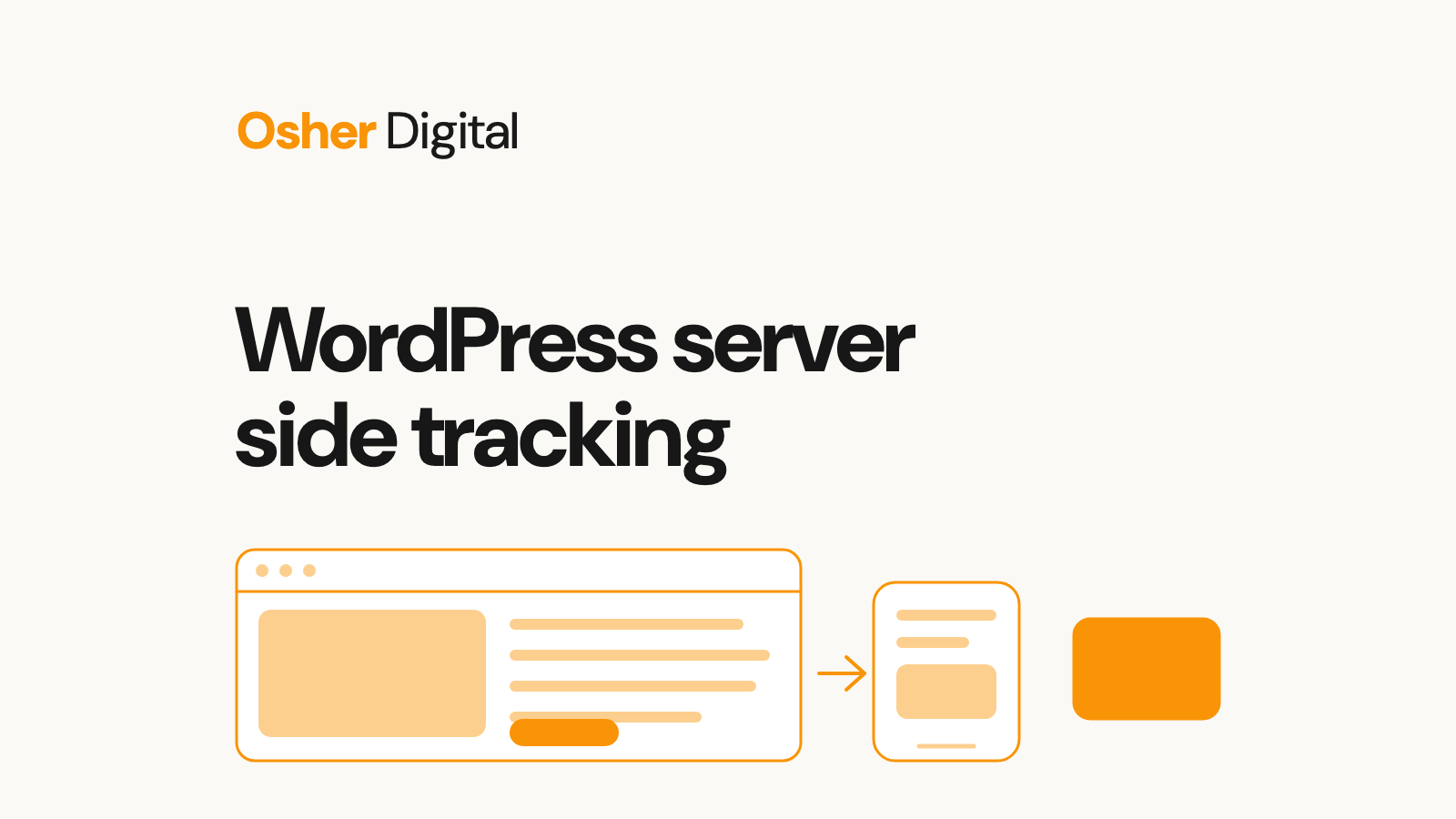
WordPress server side tracking has stopped being an experiment and started being the default for any site that actually depends on analytics. Safari ITP, ad blockers, and the slow death of third-party cookies have made client-side tagging unreliable enough that running a GTM server container is now table stakes for marketing-driven WordPress sites. We are Osher Digital, a Brisbane-based AI and automation consultancy, and we have set this server side tracking WordPress stack up enough times to have a working recipe and a short list of things that bit us in production.
This guide covers the working setup we run on client WordPress sites: the GTM Server Side plugin from stape.io, the choice of where to host the server container, how to configure the web container to talk to it, what consent looks like, the real cost ranges, and the gotchas you will not find in the official documentation. If you only need the WooCommerce-specific bits, we have a separate piece on server side tracking for WooCommerce.
What you will not find here: a click-by-click tour of the plugin settings page. Stape and the plugin authors maintain better documentation than we could write. What you will find is the architectural decisions that matter and the operational habits that keep this working six months after launch.
Why WordPress Server Side Tracking in 2026
Three things broke client-side analytics over the last few years. Safari ITP shortened cookie lifespans to seven days. Ad blockers now ship default-on in major browsers (Brave, Firefox Strict, Safari with Pi-hole upstream). Consent mode v2 made unconsented events cookieless. Together they push event loss on the average WordPress site to between 15 and 40 percent depending on audience.
WordPress server side tracking does not fix all of that. It does fix a meaningful share. Specifically:
- Ad blocker bypass. Requests to a first-party subdomain like sgtm.yoursite.com are blocked far less aggressively than requests to www.googletagmanager.com.
- Longer first-party cookie lifespans. When the cookie is set by your own server (not a third-party JavaScript tag), Safari ITP gives it a 1-year lifespan instead of 7 days. This single change recovers a large chunk of attribution.
- Smaller browser payload. Vendor tags (Meta, Google Ads, TikTok, etc.) no longer load in the browser. Less JavaScript, faster pages.
- Data control. You can hash or strip PII in the server container before forwarding. Important for APP, GDPR, and CCPA work.
- Server-to-server vendor APIs. Meta Conversions API, Google Ads Enhanced Conversions, TikTok Events API all work better when fed from a server container than from a browser tag.
What it does not fix: a user behind a VPN that filters by domain reputation, a user with JavaScript disabled, or a bot. None of those will be tracked client-side or server-side.
The Three Components of a Server Side Tracking WordPress Setup
Every server side tracking WordPress setup has the same three components. Mixing them up is the single most common cause of setups that look configured but produce no data.
1. The Web GTM Container
This is the regular Google Tag Manager container that loads in the browser. It captures events (page views, clicks, form submits, e-commerce events) and sends them to the server container. You do not remove this when moving to server side tracking. You repoint its destination tags.
On WordPress this is usually installed via a plugin like GTM4WP or via the stape.io plugin (which can manage both containers).
2. The GTM Server Container
This is the new component. A GTM server container is a Docker container that runs the GTM server-side runtime. It exposes an endpoint (typically sgtm.yoursite.com) that the web container sends events to. It then runs server-side tags that forward those events to GA4, Meta CAPI, Google Ads, and wherever else.
You either rent this from stape.io or you self-host it on Google Cloud Run, AWS App Runner, or Fly.io. Both work. The tradeoff is operational complexity vs cost. More on that below.
3. The First-Party Subdomain
The server container is reachable via a subdomain of your main site. Usually something like sgtm.yoursite.com or analytics.yoursite.com. This is what makes the requests look first-party to the browser and ad blockers. Setting this up requires a DNS CNAME or A record pointing at your container host.
If you skip the custom subdomain step and use the stape.io default URL, you lose most of the ad blocker bypass. We have seen exactly this mistake on a client site that wondered why their server side tracking was not recovering any data.
Choosing Your Server Container Host
Three real options. Each has a use case.
Stape.io managed hosting
The default for most WordPress sites. stape.io runs the container for you, handles the subdomain (or lets you bring your own), provides power-ups for Meta CAPI, GA4, and consent mode, and gives you logs you can actually read. Plans start at USD $20 per month and scale by request volume.
When to pick it: you do not have an engineer who wants to babysit a container. You want logs, monitoring, and consent mode handled. You are happy to pay a vendor for not-your-problem hosting.
Google Cloud Run
Google publishes a server container image and documents how to deploy it to Cloud Run. Google’s official deployment guide walks through the setup. Cloud Run scales to zero, so cost on a small WordPress site is often under USD $10 per month.
When to pick it: you already have a Google Cloud presence, you have someone comfortable with Cloud Run and Terraform, and you want to keep operational control. The cost is lower but the setup and ongoing maintenance is on you.
Self-hosted Docker on Fly.io or your own VPS
Niche. Some clients have data residency requirements that mandate an Australian region with specific compliance attestations. Fly.io has a Sydney region, several VPS providers do, and the container itself runs anywhere Docker runs. You can also use Fly.io for adjacent automation workloads if you already have the muscle.
When to pick it: regulated industry with specific hosting requirements, or you already have a strong DevOps culture and the container is one more thing on the same platform.
Installing the Stape WordPress Plugin
The stape.io GTM Server Side plugin is the cleanest WordPress integration. It handles the GTM web container injection, the data layer for WooCommerce events, custom loaders that mask GTM from ad blockers, and webhook integration if you need to push events to non-GTM destinations.
- Download the latest plugin from the stape-io GitHub repository. Do not install a random GTM plugin from the WP plugin directory. The stape one is the one with current support.
- Upload the zip via Plugins, Add New, Upload Plugin. Activate.
- In Settings, GTM Server Side, paste your server container URL (the sgtm subdomain). Paste your GTM-XXXXXX web container ID.
- Enable the custom loader option. This is the bit that masks the GTM script from ad blockers. Skipping this is a common mistake.
- Configure consent mode v2 settings. Pair with Cookiebot, CookieYes, or Complianz, depending on your consent management platform.
- Save. Verify that the rendered page source contains the custom loader path, not the default googletagmanager.com URL.
Verify the install with the GTM preview mode on both the web and server containers. If events arrive in the web container but not the server container, the most common cause is the server container URL being wrong or the SSL certificate not yet propagated on the custom subdomain.
Cost Breakdown
Real numbers from sites we have set up. All figures monthly.
- Small WordPress site, under 100k events per month. Stape Basic: USD $20. Cloud Run self-host: USD $5 to $15. Engineering time to set up: 2 to 4 hours. Engineering time to maintain: usually zero, occasionally an hour to chase a broken tag.
- Mid-volume WordPress site, 100k to 1M events per month. Stape Basic to Business: USD $50 to $100. Cloud Run: USD $20 to $60. Engineering time to set up: 3 to 6 hours.
- High-volume site, over 1M events per month. Stape Business or Enterprise: USD $200+. Self-host: USD $80 to $200 depending on container sizing. At this volume the operational discipline matters more than the hosting choice.
Australian businesses converting USD to AUD: multiply the USD figure by 1.55 in 2026 to get a rough AUD equivalent. So a Stape Basic plan lands around AUD $30 to $35 per month.
The Stape pricing is worth paying even if Cloud Run is cheaper. The hours you would otherwise spend on logs, alerts, and runtime patches are usually worth more than the price difference unless you have an engineer who finds GTM containers fun.
Production Gotchas We Have Hit
Six things that have cost us debugging time. Worth knowing up front.
The custom subdomain certificate did not propagate. You set the CNAME, you save the stape config, and you assume it works. SSL certs can take up to 24 hours to issue depending on your DNS provider. Use a checker like SSL Labs before going live.
The web container kept sending to googletagmanager.com. The stape plugin custom loader option got toggled off in a routine plugin update. Result: ad blocker bypass quietly disappeared. Now we monitor the rendered page source as part of our weekly checks.
Consent mode v2 misconfigured. Consent mode default values not set on the server container, so unconsented events were dropped silently. The fix is consistent v2 config on both containers. Test with a fresh browser session before sign-off.
Meta CAPI deduplication broken. The browser pixel and the CAPI server tag both fired the same event but with different event IDs. Result: every purchase counted twice in Meta. Fix is to generate a stable event_id in the data layer and pass it to both tags.
Cloud Run cold start latency. If you self-host on Cloud Run with scale-to-zero, the first request after idle takes 800 ms to 2 seconds. Most events still get through (the browser is async) but if you have time-sensitive server tags, set a minimum instance count of 1.
The GTM server container ran out of memory under load. Default Cloud Run memory is 256 MB. Under any meaningful traffic this is not enough. Bump to 512 MB or 1 GB and watch the metrics for a week.
When WordPress Server Side Tracking Is Overkill
Not every WordPress site needs this.
Personal or hobby sites. If you have no advertising spend tied to analytics, the operational overhead of a second GTM container is not worth the precision. Stick with web GTM and accept the 20 percent event loss.
Static content sites with no e-commerce. A blog with affiliate links and no campaigns gets very little incremental benefit from server side tracking. The ROI is poor.
Sites running headless WordPress with Next.js or another framework. The stape WordPress plugin assumes the front-end is rendered by WordPress. If you are running headless, the right pattern is to install GTM in the front-end framework directly and skip the WP plugin.
Sites with under 1,000 monthly visitors. The data volume is too small for the marginal accuracy to matter. Spend the time on other things.
For everyone else, WordPress server side tracking is now the default. If you are running paid acquisition and not doing this, you are leaving conversions on the table. For sites that need a step-by-step implementation, our guide on how to set up server side tracking covers the operational habits to maintain after the cut-over.
Related Setups We Run
The same plugin and pattern works across most of the WordPress ecosystem. We have separate write-ups for the platforms that need configuration changes.
- Server side tracking for WooCommerce covers the e-commerce events and product feed configuration.
- GTM server setup with stape.io goes deeper on the Stape-specific configuration.
- Server side tracking for Shopify for the equivalent setup on Shopify if you run multiple platforms.
If you need help setting this up properly without losing data through the cut-over, book a call and we will walk through your current setup.
Frequently Asked Questions
What is server side tracking on WordPress?
Server side tracking on WordPress moves analytics event collection from the browser into a server container. The WordPress site sends events to a Google Tag Manager server container, and that container forwards them to GA4, Meta CAPI, Google Ads, or wherever you need them. The browser only sees a request to your own subdomain, which is what makes the setup more durable against ad blockers and Safari ITP.
How do I set up server side tracking on WordPress?
Install the GTM Server Side WordPress plugin from stape.io, point it at a server container URL (either a stape.io managed host or one you run on Google Cloud Run), configure your web GTM container to send events to that URL, and add server-side tags for each destination. The plugin handles the heavy lifting of injecting the right snippet and managing first-party cookies. A working setup takes two to four hours including testing.
How much does WordPress server side tracking cost?
The Stape Basic plan starts at around USD $20 per month for low-traffic sites and scales to USD $100+ for higher volume. Self-hosting on Google Cloud Run usually lands between USD $5 and $40 per month for most WordPress sites, plus the engineering time to manage the container. For Australian sites, AUD pricing typically sits 50 to 60 percent above USD.
Does server side tracking actually bypass ad blockers?
Partially. The script that sends data to your own subdomain is much harder for ad blockers to block than a request to www.googletagmanager.com. We see recovery in the order of 10 to 25 percent of previously-lost events depending on your audience’s blocker mix. It does not recover everything. Anyone using a tracker-blocking VPN or extension that filters by behaviour rather than domain will still be blocked.
Do I still need a client-side GTM container?
Yes. The web GTM container still runs in the browser and is responsible for capturing events and sending them to the server container. The server container then enriches and forwards them. You end up with two containers, not one. Removing the web container is one of the most common mistakes we see.
How does server side tracking affect my Core Web Vitals?
Page load gets faster because the browser sends fewer requests to third-party tag servers. The web container still loads, but downstream calls to Google Ads, Meta, and other vendor tags no longer fire from the browser. We typically see LCP improvements of 100 to 400 ms after a properly configured server side tracking move.
Is server side tracking on WordPress GDPR compliant?
Server side tracking does not magically make you compliant. Consent still has to be obtained before tagging fires. The advantages are that you have more control over which data leaves your server, you can hash or strip PII before forwarding, and you have a clearer audit trail. Pair the plugin with a consent management platform like Cookiebot or CookieYes and configure consent mode v2 on both containers.
Can I do server side tracking on WooCommerce as well?
Yes, and the same plugin handles WooCommerce e-commerce events out of the box (purchase, add_to_cart, view_item, begin_checkout). Our separate guide on server side tracking for WooCommerce covers the e-commerce-specific configuration in more detail.
Server side tracking on WordPress is one of those projects that pays for itself within a quarter for any site running paid acquisition. If you want a second opinion on your setup, or you need help moving from client-side to server-side without losing data, get in touch. We typically scope this work as a fixed-fee project rather than ongoing retainer.
Last updated on October 28, 2026
Free tool · 1 minute
AI Agent Idea Generator
Describe a painful process and get concrete AI agent concepts for your industry.
Continue Reading
View all
Smarter Appointment Setting Lead Generation
Unlock proven appointment setting lead generation strategies. Move beyond cold calls to fill your calendar with genuinely qualified, high-value meetings.
Sep 5, 2025
Sick of reading about automation?
Book a free 15-minute intro call. We’ll talk through what you’re trying to automate and whether we’re a good fit.